A channel freezing halfway through a programme doesn’t tell you much about what’s gone wrong. It could be your Wi-Fi, the app on your Firestick or a problem with that particular stream. If IPTV keeps buffering on your Firestick, this guide will help you work out where to look first. We’ll start with a few simple checks before moving on to changes that could remove your saved settings or login details.
What should you check first when IPTV buffers on a Firestick?
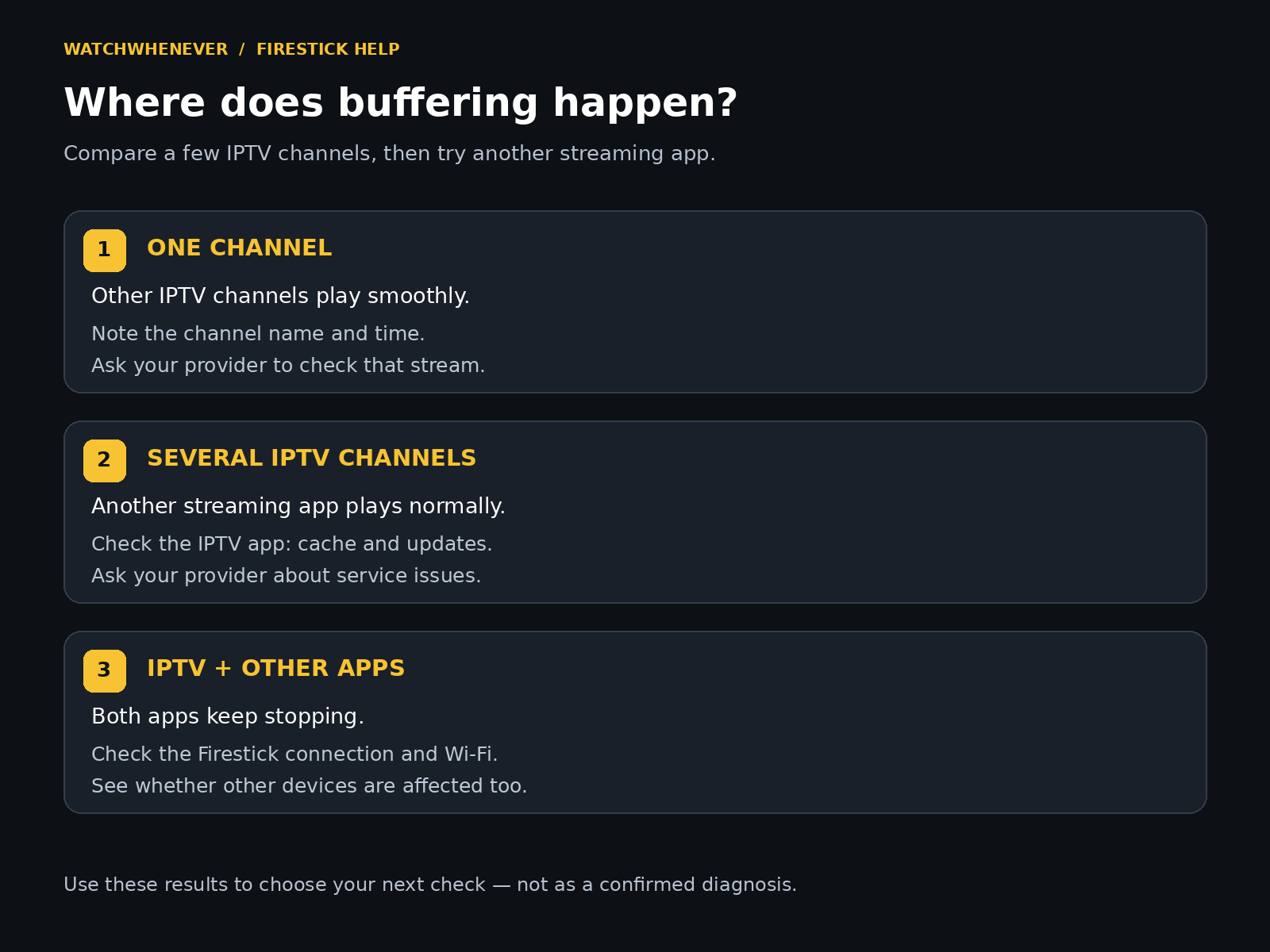
Try a different channel in your IPTV app, then play something in another streaming app on the same Firestick. If only one channel keeps stopping, start by checking that stream with your provider. If several IPTV channels buffer but the other app plays normally, check the IPTV app and service next. If both apps struggle, start with the connection and the Firestick itself. These checks won’t identify every cause, but they’ll help you choose which steps to try first.
Is it one channel or several?
When a channel freezes, switch to two or three others and watch each for a few minutes. Choose a mix, such as a news channel, an entertainment channel and another sports channel. If those play smoothly, return to the original channel and check it again. A problem that keeps affecting the same channel is worth reporting to your provider before changing your Firestick settings. Include the channel’s full name, the time it happened and whether the picture froze, the sound stopped or a loading symbol appeared.
Does another streaming app play normally?
Open another app you already use on the same Firestick, such as BBC iPlayer or YouTube, and play a video for a few minutes. Keep the Firestick connected to the same network so the comparison is useful. If that video also keeps stopping, the problem may extend beyond your IPTV app. If it plays smoothly while several IPTV channels buffer, focus your next checks on the IPTV app and service. This doesn’t rule out a connection problem: different services can behave differently on the same network.
Restart your Firestick, then try the same channels
Go to Settings → My Fire TV → Restart and wait for the home screen to return. Open your IPTV app and return to the channels that were buffering. Watch for several minutes rather than switching away as soon as the picture appears. If playback improves, note whether the pauses return later. If nothing changes, move on to the connection checks below. Leave your app settings unchanged for now so you can tell whether restarting made a difference.
Check the Wi-Fi connection on your Firestick
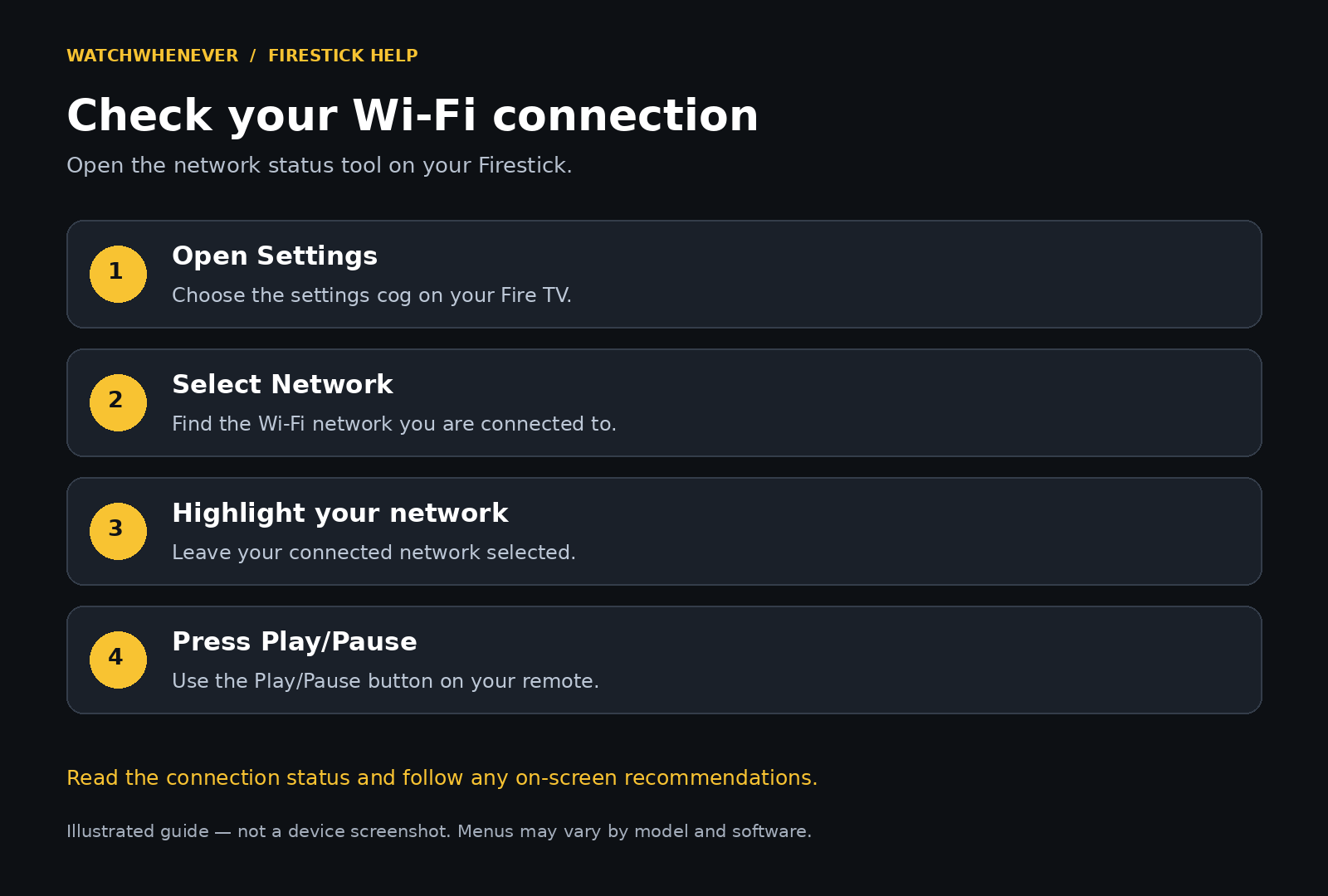
Open Settings → Network, highlight your connected Wi-Fi network and press Play/Pause on the remote to view its status. Check whether the Firestick reports a problem connecting to your router or reaching the internet, and follow any troubleshooting steps shown. Make a note of the result before changing anything. If the connection check passes but channels still buffer, keep that information for the next checks: being connected doesn’t necessarily explain how reliably a particular stream will play.
Try moving the router closer
If the network check shows a weak Wi-Fi signal, try moving your router closer to the Firestick, even temporarily. Amazon recommends reducing the distance between the two devices to improve signal strength. Run the connection check again, then watch the same channels that were buffering. If playback improves, that suggests the wireless connection deserves attention before you change the IPTV app. If moving the router makes no noticeable difference, note the result and leave the app settings alone while you continue checking.
Run a speed test on the Firestick
On compatible Fire TV devices, open the network status screen and select Run Speed Test if the option appears. Run it while you’re experiencing buffering, and repeat it a couple of times to see whether the results vary. Keep a note of the readings and the time of the test. A result from your phone won’t necessarily reflect the connection your Firestick receives, so testing on the affected device gives you a more relevant starting point. Treat the figures as clues alongside your playback checks: a high download speed alone doesn’t establish why a channel keeps stopping.
Restart the router if other apps are buffering too
If several streaming apps keep stopping, restart your router before changing the IPTV app. This will briefly disconnect everyone using your home internet, so choose a suitable moment. For a combined modem and router, unplug its power supply, wait one minute, then reconnect it and allow the internet connection to return. If you have separate units, reconnect the modem first, wait for it to reconnect, then power up the router. Use the power connection rather than the reset button, which may erase your network settings. Once the Firestick reconnects, repeat your playback checks to see whether anything has improved.
Clear the IPTV app’s cache
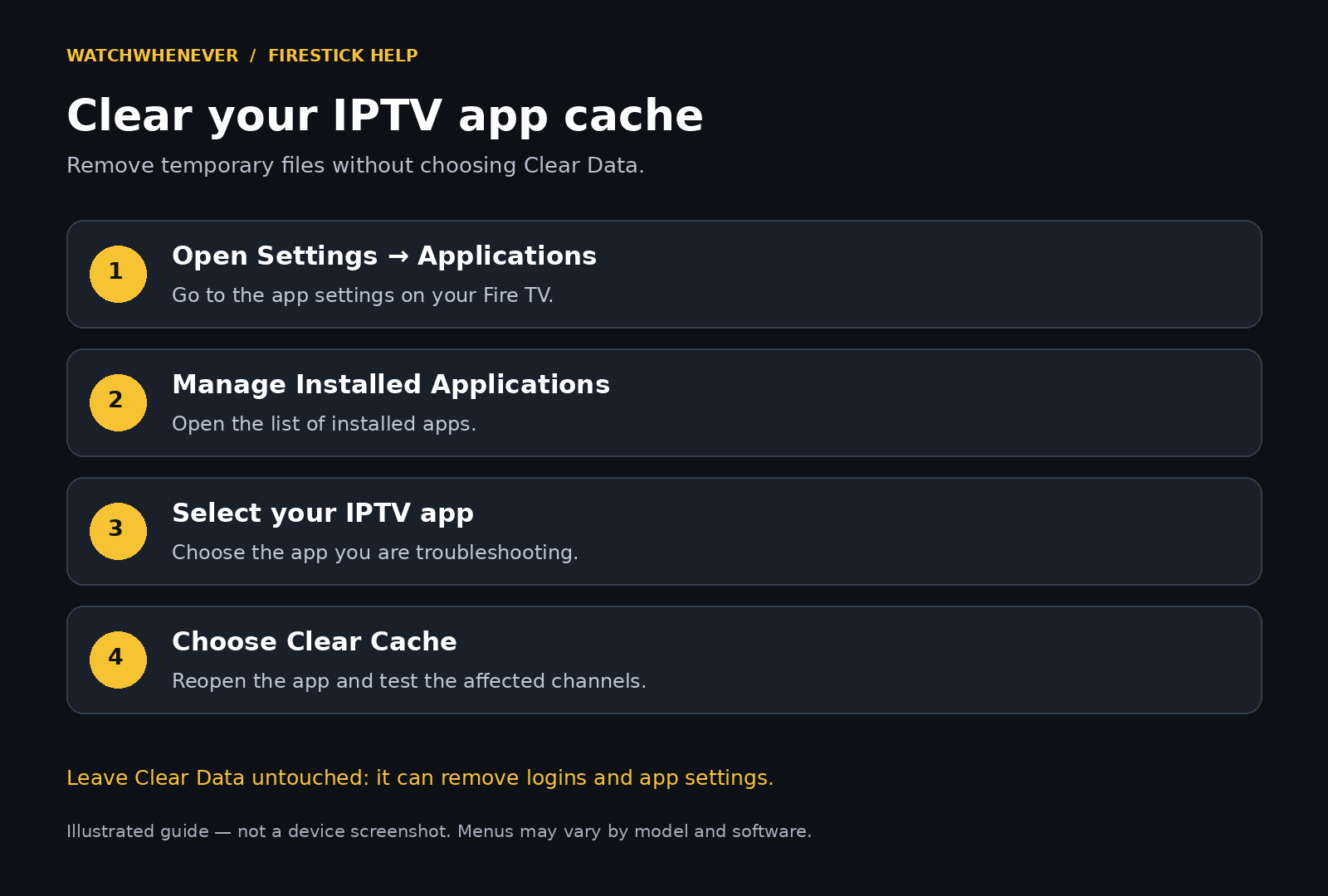
If other streaming apps play normally but your IPTV app still struggles, try clearing its cache. Open Settings → Applications → Manage Installed Applications, select your IPTV app, then choose Clear Cache. Amazon includes clearing the cache among its troubleshooting steps for intermittent app problems. The cache holds temporary files; Clear Data is a separate option that can remove saved logins and app settings, so leave that untouched for now. Reopen the app and test the affected channels again before making another change.
Check for a Fire TV software update
Open Settings → My Fire TV → About → Check for System Update. On some devices, the menu is called Device & Software instead of My Fire TV. Follow the on-screen instructions if an update is available. Amazon includes checking for system updates in its app troubleshooting guidance. Once the installation has finished and the Firestick is ready, reopen your IPTV app and test playback again. This updates the device’s software; the IPTV app may have a separate update, which we’ll check next.
Check whether your IPTV app needs updating
If you installed your IPTV app from the Amazon Appstore, open its store listing and check whether an update is available. You can also enable automatic app updates under Settings → Applications → Appstore → Automatic Updates. If the app came directly from its developer or your provider, follow their official update instructions instead. Check that the version supports your Firestick model, and keep your login details handy if their instructions involve reinstalling. Once the update is complete, try the affected channels again before changing any playback settings.
Try a lower-quality version of the same channel
If your channel list offers both HD and 4K versions of the same channel, try the HD version for a few minutes. Higher-quality video generally needs more bandwidth, although the exact requirement depends on how the stream is encoded. Netflix’s own recommendations illustrate this difference, but its speed figures shouldn’t be treated as requirements for your IPTV service. If HD plays smoothly while 4K repeatedly stops, note both channel names and report the comparison to your provider. That result helps narrow the investigation, but it doesn’t prove your broadband package is too slow: the two streams may also differ at the source.
Does buffering happen only at certain times?
If playback is smooth during the day but starts stopping in the evening, repeat your earlier checks while the problem is happening. Note which channels are affected, whether another streaming app also struggles and whether anyone at home is downloading files or watching video. For a live match, record the channel name and approximate time of each interruption. A pattern like this is useful evidence for support, but the timing alone won’t tell you whether the cause is your home connection, the internet provider or the stream itself.
What do your results suggest?
These comparisons help you decide what to check next. They’re starting points rather than a confirmed diagnosis.
| What you notice | What to check next |
|---|---|
| One channel buffers, while others play smoothly | Report the affected channel and time to your IPTV provider. |
| Several IPTV channels buffer, but another streaming app works normally | Check the IPTV app and ask your provider about service issues. |
| IPTV and other streaming apps both keep stopping | Investigate the Firestick’s connection and whether other devices are affected. |
| Moving the router closer improves playback | Look into Wi-Fi coverage around the Firestick. |
| HD plays smoothly, but the 4K version keeps stopping | Share both channel names with your provider so they can investigate the difference. |
| Buffering happens mainly in the evening or during matches | Repeat the comparisons at that time and record the results for support. |
What should you send to support?
If buffering continues, send your provider a short summary of what you’ve checked. Include your Firestick model, the IPTV app’s name and version, the affected channel names, and when the interruptions happened, including your time zone. Explain whether other streaming apps worked normally and which steps made a difference. Add any speed-test results taken on the Firestick while it was buffering. A screenshot of an error message can also help, but hide passwords, playlist URLs and other login details before sharing it. WatchWhenever customers can send these details through our contact form.
Before you replace your Firestick
A few playback comparisons can tell you more than changing several settings at once. Start by finding out whether the pauses affect one channel, the whole IPTV app or other streaming apps too. Keep track of what changes after each check, and share those results with support if the problem continues. You’ll give them a clearer starting point—and avoid buying equipment before you know what needs fixing.